
TL;DR
Before a SharePoint migration, check five things: your files, permissions, metadata, folder structure, and what the migration has to deliver. Fix what you find before you move it. This guide covers what to look for in each one.
To prepare for a SharePoint migration, review five things before you move a single file: your content, your permissions, your metadata, your folder structure, and your migration requirements.
Whatever files/folders you leave unchecked moves with you. The duplicate folders, the access rights from 2019, the unlabeled documents.
A Veritas survey of 2,550 IT decision makers found that only 15% of stored data is business critical. About a third is redundant, obsolete, or trivial: duplicates, old versions, files nobody uses. The rest is “dark,” meaning nobody knows what it’s worth. If your company is near that average, roughly a third of what you’re about to move is junk.
That’s what SharePoint migration preparation is for. It’s where you find out what you have, while changing it is still cheap.
This guide takes the five areas one at a time: what to look at, what usually turns up, and what to fix first. These are the SharePoint migration best practices that happen before any file moves.
What’s in Your Content, and What Should Move?
You can start with a list. Every file share, site, and library: where it lives, who owns it, how big it is, how many items it holds, and when anyone last opened it.
Then sort everything into four piles: move it, archive it, delete it, or fix it first.
Don’t do this alone. IT can see what exists, but only the people who use the files know what’s important. Say there’s a folder called “Old Projects – Do Not Delete” holding 4 TB. Nobody in IT wants to touch it. Ask the owner and you may learn that nobody has opened it since 2020. (That’s an example)
Also check for files SharePoint will reject. Per Microsoft’s published limits, the full path, including the file name, can’t pass 400 characters. Names with characters like * : < > ? / \ | cause trouble too.
Tzunami’s Pre-Migration Analyzer scans the source and reports on data volume, file distribution, path length violations, invalid characters, and file extensions. You can export the results to CSV, so the conversation starts with numbers.
Who Has Access to What?
Look at permissions before they get copied. These usually turn up:
- People who left the company and still have access
- Users added directly instead of through groups
- Folders with broken inheritance, meaning their own special permissions
- Guest accounts from projects that ended
Say a finance manager left in 2021 and still has access to the payroll folder. Copy permissions as they are, and that access lands in SharePoint too.
Microsoft’s page also lists a supported limit of 50,000 unique permissions per list or library. And once a library or folder passes 100,000 items, you can’t break inheritance on it anymore.
Decide early: copy permissions as they are, or clean them up. Migration is the easiest time to clean up. Write down who should have access by group, not person by person.
Is Your Metadata Ready?
Metadata is the information attached to a file: author, date, client, status, type. It’s what makes search and filters work.
Check three things:
- Which fields you use
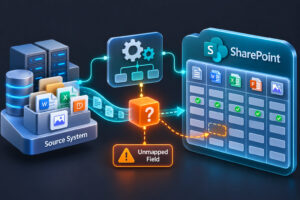
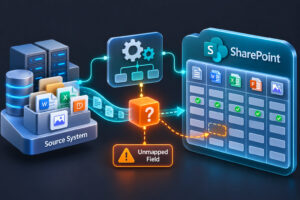
- Which ones have no matching column in SharePoint
- How messy the values are. “Approved,” “approved,” “APPROVED,” and “appr.” mean the same thing to a person. SharePoint sees four different values.
Build the columns before the content arrives. If they don’t exist yet, those fields come over blank. Our guide on fixing metadata issues goes deeper.
Will Your Folder Structure Work in SharePoint?
Probably not as it is. Old file servers love deep folders. SharePoint works better with metadata and search.
Then there’s the 400-character limit. A path like /Finance/2021/Q3/Invoices/Vendors/ABC Corp/Approved/Final/Signed/ gets long before you add the file name.
The fix is to turn folder levels into columns. Before: /2021/Finance/Invoices/. After: one library with Year, Department, and Type columns, plus filtered views. Same files, shorter paths, easier to find.
The Analyzer’s path length report shows which items are already over the limit.
What Does the Migration Need to Deliver?
People skip this one. Write down the answers to these:
- When does it need to be done?
- Can people keep working while it runs? If yes, you’ll need extra passes to catch what changes in the meantime. We cover that in our delta migration guide.
- Are there compliance rules, like retention?
- What does “finished” mean, and who signs off?
Agree on this before you start. Otherwise “done” means something different to everyone.
Quick Summary
| Area | What to check | What usually turns up |
| Content | Inventory, owners, last use, limits | Duplicates, stale files, long paths |
| Permissions | Who has access, inheritance, guests | Ex-employees, direct assignments |
| Metadata | Fields in use, missing columns, messy values | Blank columns, inconsistent values |
| Structure | Folder depth, path length | Deep folders, paths over 400 characters |
| Requirements | Deadline, downtime, compliance, sign-off | Expectations nobody wrote down |
Which Preparation Mistakes Cost the Most?
- Skipping the review because the deadline is tight
- Copying permissions as they are
- Leaving metadata until after the migration
- Never writing down what “done” means
Conclusion
Nobody gets excited about a pre-migration review. But every problem you find now is one you won’t be fixing in the middle of a live migration. Check the five areas, fix what turns up, and write down what done means. Then start.
Frequently Asked Questions
- What should I do first before a SharePoint migration?
Take inventory of your content: what you have, where it lives, and who owns it. - Should I clean up files before migrating?
Yes. Archive or delete what nobody uses, so you’re not paying to move it. - What file limits does SharePoint have?
Microsoft lists 400 characters for the full file path and 250 GB per file. - Should I copy permissions as they are?
Usually not. Clean them up first. Migration is the easiest time to do it. - Why does metadata matter in a migration?
It powers search and filters. If the columns are missing, the fields arrive blank. - How does Tzunami’s Pre-Migration Analyzer help?
It scans the source and reports on data volume, file distribution, path length problems, invalid characters, and file extensions.